How to Integrate Edmingle Payment Gateway?
Edmingle offers an in-built payment gateway powered by Razorpay to help you securely collect payments via UPI, cards, net banking, and wallets. This guide provides step-by-step instructions to integrate and activate the gateway on your academy’s platform.

Step 1: Access the Integration Settings
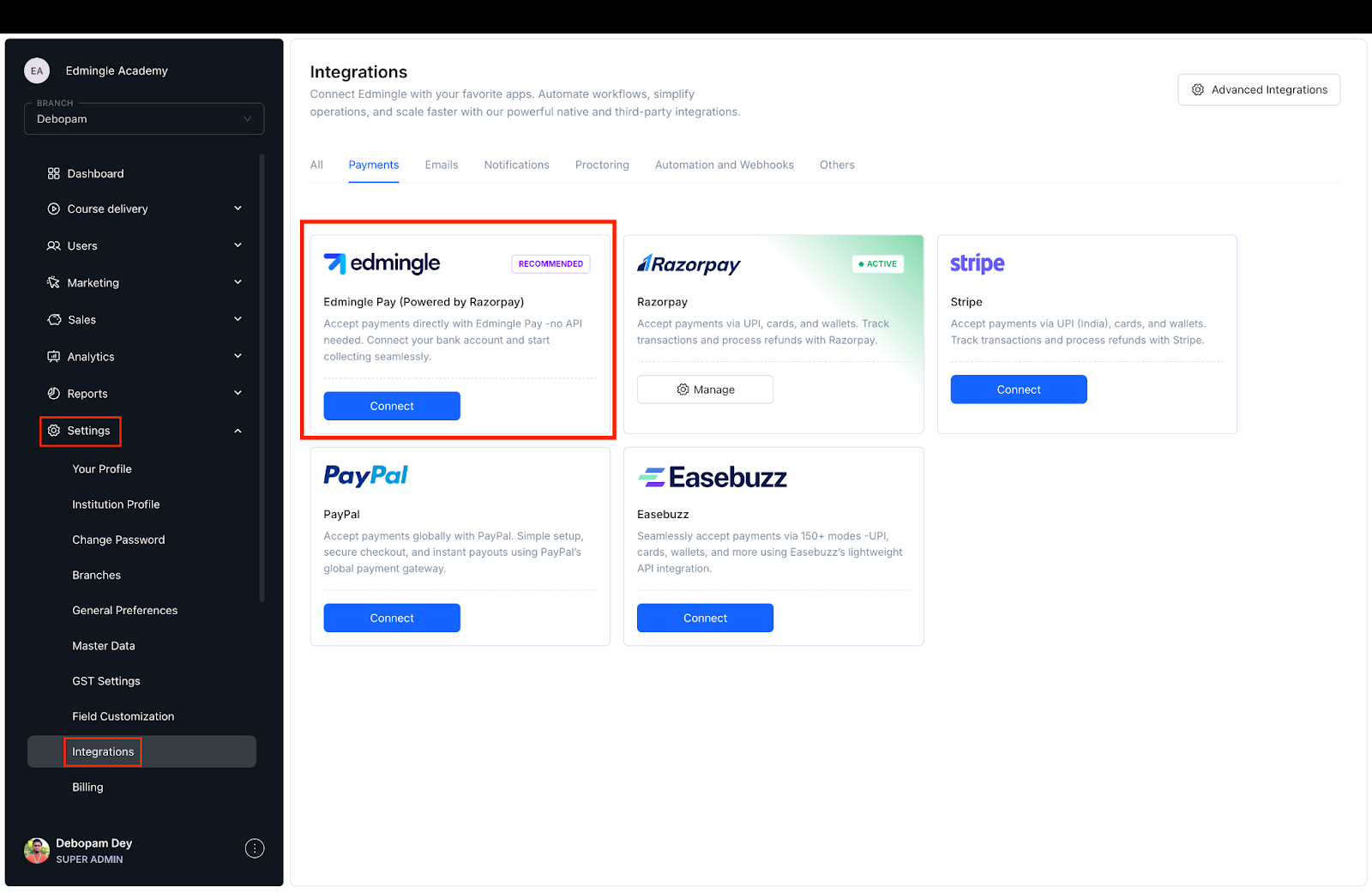
Log in to your Edmingle admin dashboard.
Navigate to Settings from the left-hand menu.
Select Integrations.
Under the Payment Gateways section, locate Edmingle Pay (Powered by Razorpay) and click Connect.
Step 2: Enter Business and Banking Details
Fill in the required fields in the integration form:
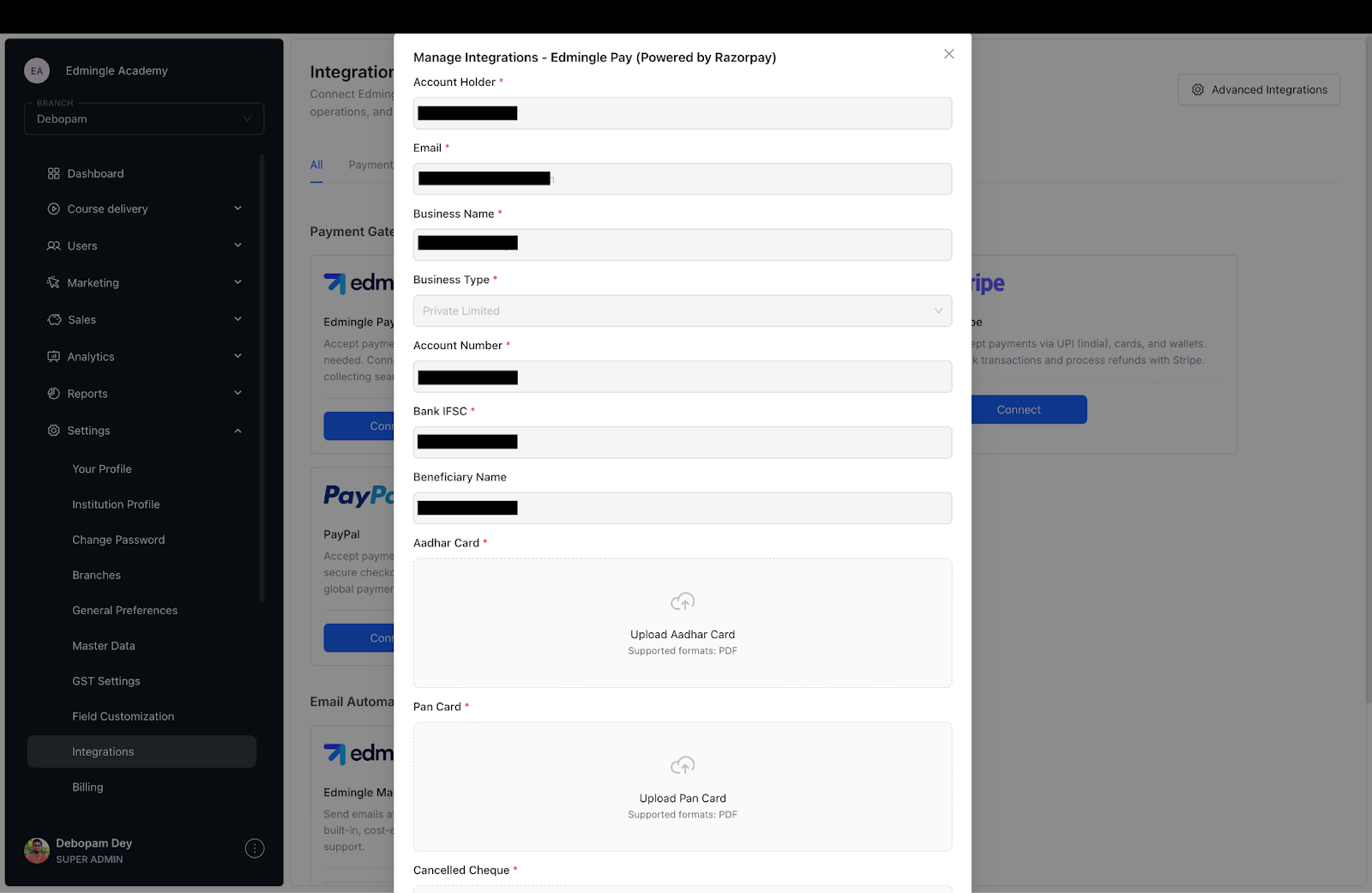
Business Details
Account Holder: Enter the name as per your bank account.
Email: Enter your registered business email address.
Business Name: Provide the legal name of your business or academy.
Business Type: Choose the appropriate business type (e.g., Private Limited, Sole Proprietorship, etc.).
Bank Details
Account Number: Enter your valid bank account number.
Bank IFSC Code: Enter the IFSC code of your bank branch.
Beneficiary Name: This should match the name on your bank account.
Step 3: Upload Mandatory Documents
You are required to upload the following documents in PDF format:
Aadhar Card: Identity verification of the account holder.
PAN Card: Required for tax compliance and verification.
Cancelled Cheque: Must display the account number, IFSC, and account holder’s name.
 Ensure that all documents are clearly scanned and match the information provided in the form.
Step 4: Submit and Connect
Once all fields are completed and documents uploaded:
Click on the Connect button.
Your details will be submitted for verification by the Edmingle team.
 The integration is typically activated within 24 to 48 business hours upon successful verification.
Post-Integration Access
After activation:
Payments made by learners will be processed through your Razorpay-linked account.
You can track payment activity under the Sales → Payments section of your dashboard.
Refunds and settlements will follow Razorpay's standard processes.
For Power and Maxx Plans, you will have an option to integrate your own Payment Gateways. Please go to the integrations section for their documentaions. Available Payment Gateways for integration:
1. Razorpay (Indian & International Payments Supported)
2. Easebuzz (Only Indian Payments Supported)
3. Stripe (Indian & International Payments Supported)
4. Paypal (Only International Payments Supported)
